

A bid in Offra used to open on a summary page with a strip of tabs: Summary, Tender, Tasks, Files, Key dates, Legal, Questions. Behind the Tasks tab sat a long list, and behind each task its own page with a Draft answer button. It worked, but it asked you to find your own way through it.
From today a bid is a short series of steps in the sidebar, in the order you actually work a tender, and the documents inside them come one at a time. Offra now writes whole documents rather than one task's answer, and on the buyer's own forms it tells you what to type in each field. This post walks through the new flow on a real tender.
The example
The screenshots come from a real public notice: Navy request for quotes N6471026Q0016, a Microsoft 365 data migration for Strategic Weapons Facility Pacific. It has since closed, on September 14, 2026. We uploaded its package as it was published, seven files including two amendments and a questions-and-answers document. The firm answering it, Quillfern Systems LLC, is an example firm, and its people and past projects are invented for this post. Everything else on screen is what Offra read in the tender and wrote from it.
Ten steps in the sidebar
When you open a bid, the sidebar becomes the bid. It lists the steps, each with what is left in it and who has it:
- Tender — the bid's name, its number, the link to the notice, and the tender documents.
- Team — who leads the bid and who helps.
- Missing documents — the forms and annexes the tender names that you did not upload.
- Key dates — every date the tender sets. Tick one to be reminded of it.
- Compliance — the records the bid needs, and the rules that can sink it.
- Past projects — one sheet per project, when the tender asks for them.
- CVs — one CV per person, when the tender asks for them.
- Documents to write — a methodology, a technical approach, a cover letter.
- Buyer forms — every form the buyer provides, with what to enter.
- Review & submit — your finished documents, checked against the tender.
A step the tender does not need does not appear. The Navy RFQ asked for no CVs and no separate past project sheets, so its bid has eight steps. You can skip a step and come back to it, and any step can be handed to a teammate.
The analysis now runs inside the bid, on the Team step. It takes a few minutes, so that is the time to choose who works on it.
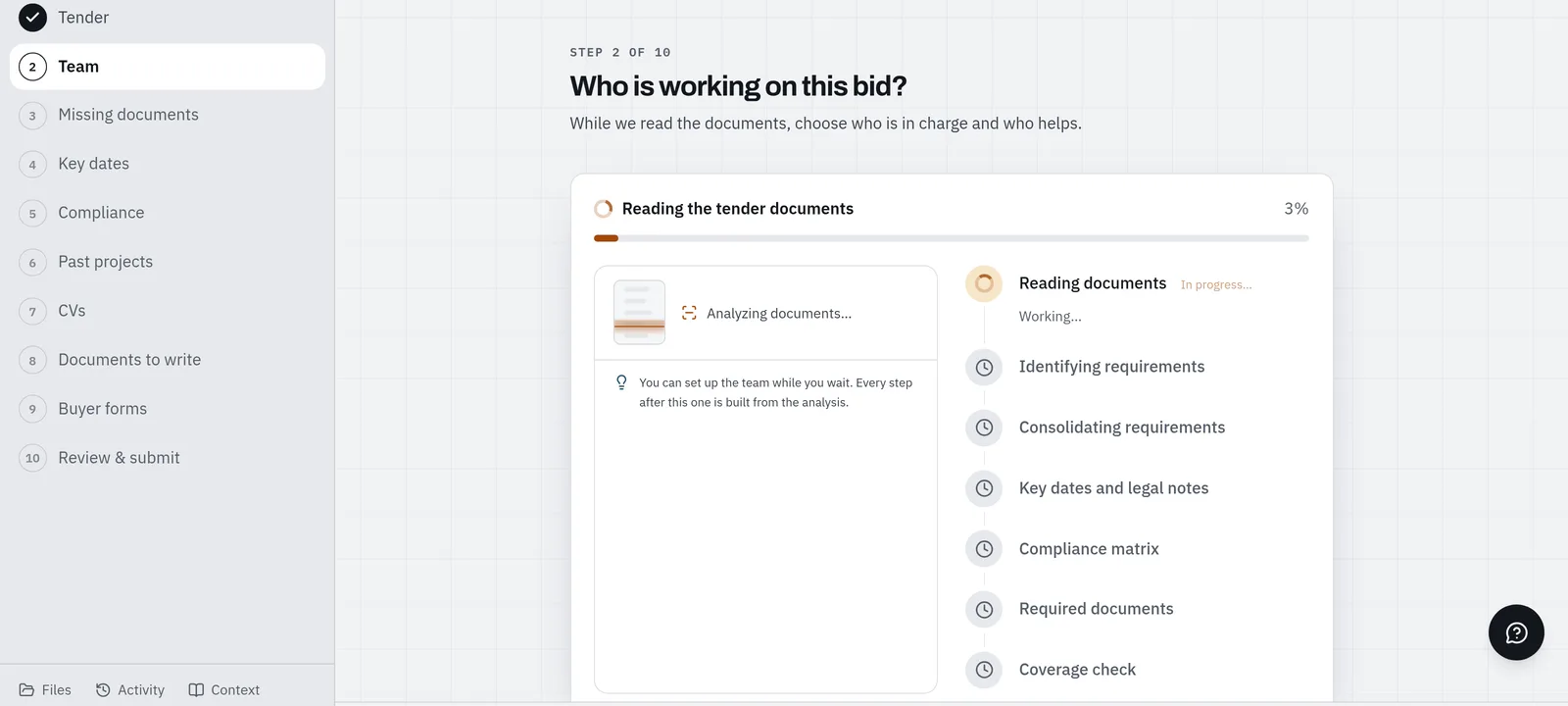
Offra read the version in force. The package held the original solicitation and two full copies amended after it, so it analysed the latest one and left the two earlier copies out. They stay on the bid's Files page, marked as earlier versions, so you can check that call.
Compliance, judged at the closing date
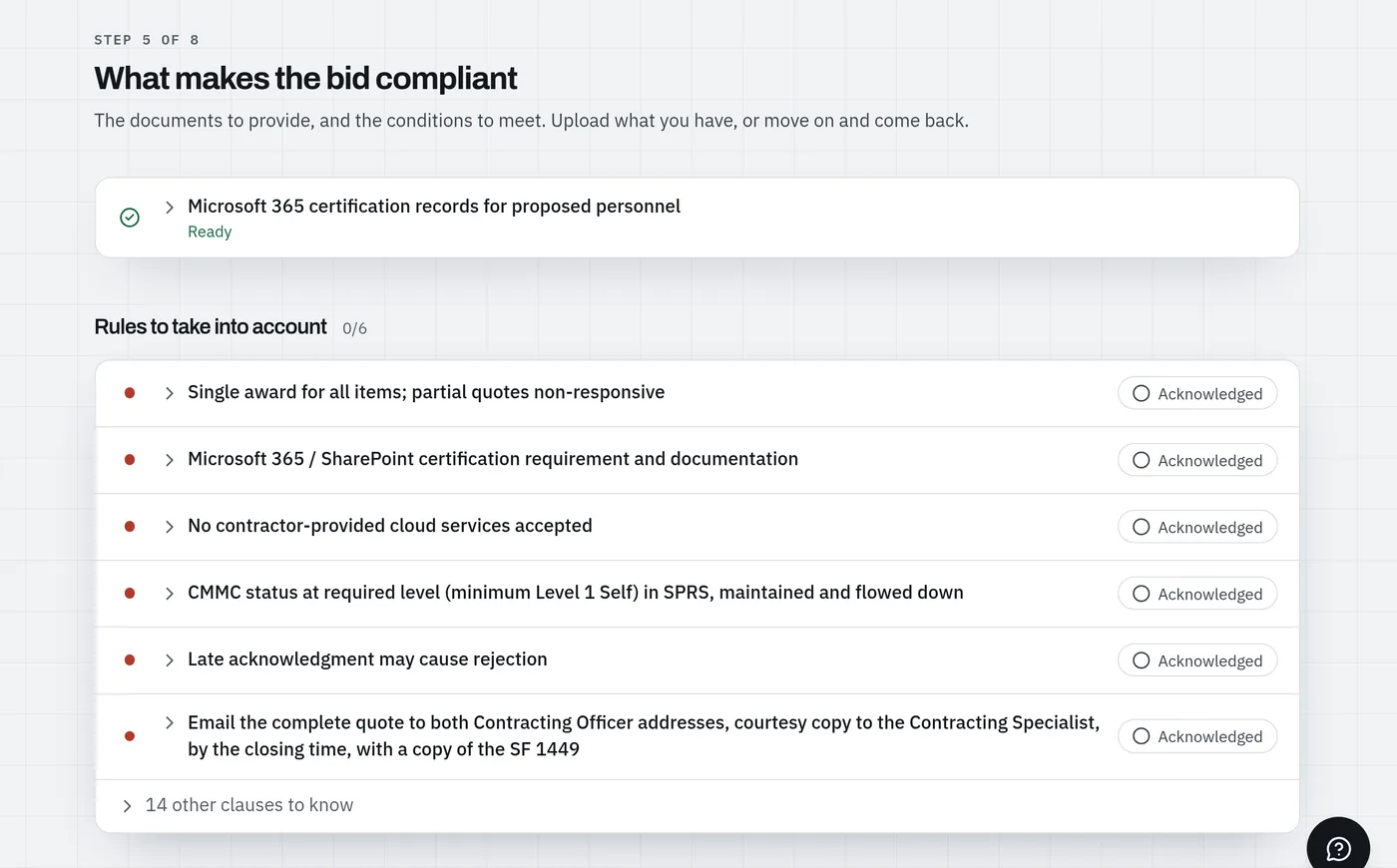
Compliance lists the official records the bid needs, one line each, and judges each one against the closing date, not today: valid, expires before the closing, found in your knowledge base, or still to obtain. A record a third party has to issue, like a bond, is on the list from the first day. Each line has one action: use the file you hold, replace it, fix it, or mark it ready.
Under the records sit the rules to take into account: the clauses that can get a bid thrown out. On the Navy RFQ there were six, each to acknowledge, from "a single award for all items" to "no contractor-provided cloud services". The step is done when every record is in and every critical rule is acknowledged.
One document at a time
The other steps work through their documents one at a time. Each document opens on its own page:
- its heading says what to do with it, in plain words ("Complete the company information sheet"), with the buyer's own title under it;
- dots at the top move you between the step's documents;
- Source opens the passage of the tender it comes from;
- it has an owner and a due date;
- Mark ready (Mark filled on a form) ticks everything the tender asks of it and moves you on to the next document.
What the tender asks of each document is listed at the foot of the page, one line each, with where it says so.
Buyer forms: the value to copy, beside the form
Offra does not fill in the buyer's file. It lists every field of the form, with the value to type and where that value comes from: your company profile, your knowledge base, or the tender. The buyer's own page sits on the right, turned to the field you are on and highlighted when Offra can place it on the page.
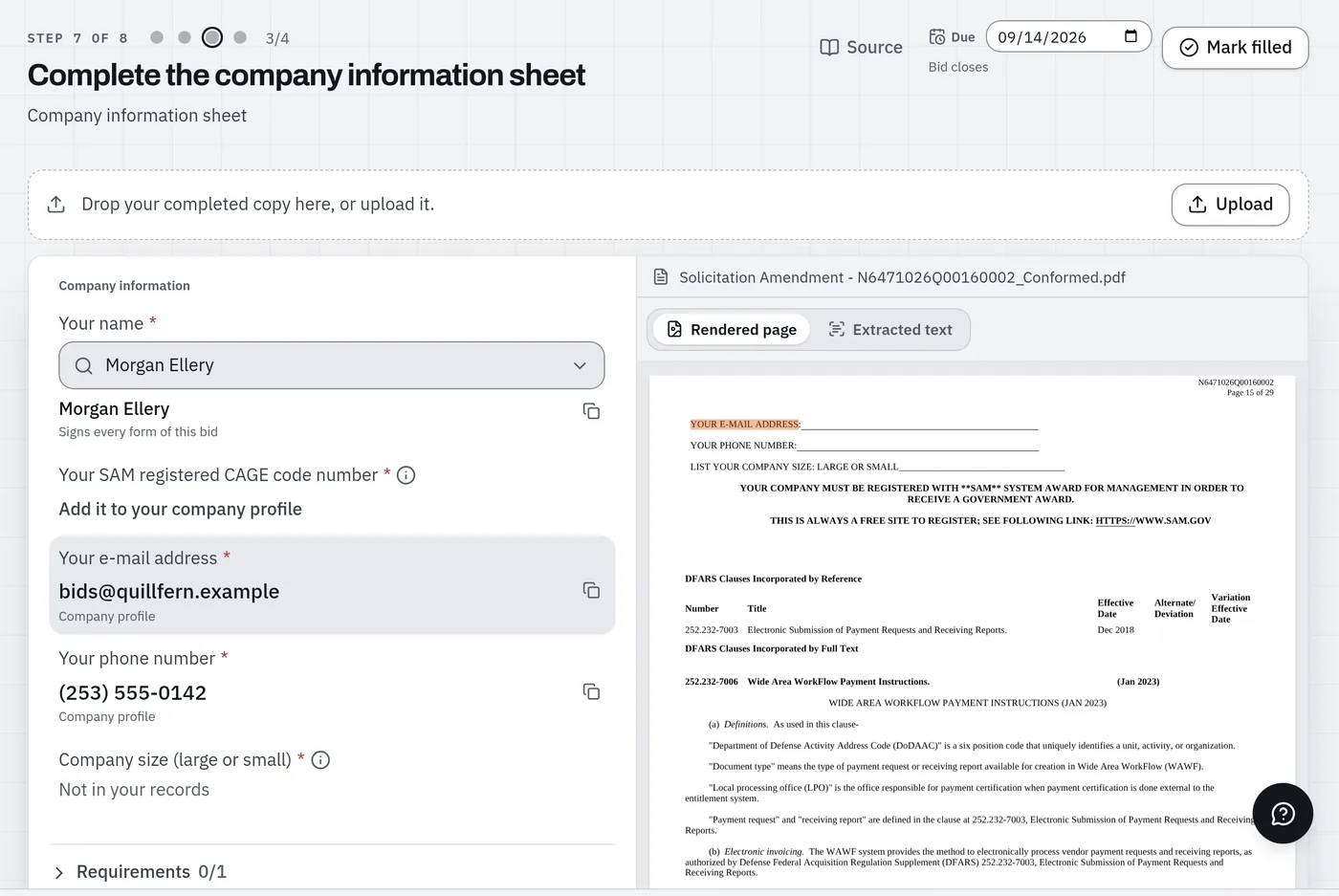
Three things are never filled in for you:
- Your price. A price field stays an empty "Your price" box. On the Navy RFQ, the four price fields of the SF 1449's price schedule stayed empty.
- What your records do not hold. The example firm had no CAGE code on file, so the field says where to add one instead of guessing.
- Signatures and dates. They read "By hand".
Who signs is asked once, and that person is used on every form of the bid.
Documents written whole
For a document you have to write, Offra writes the whole document, from what the tender asks of it, your knowledge base and company profile, and a few words of instruction if you give them. On the Navy RFQ, the one document to write was the technical quote: architecture, approach, past performance and assumptions. It took about a minute.
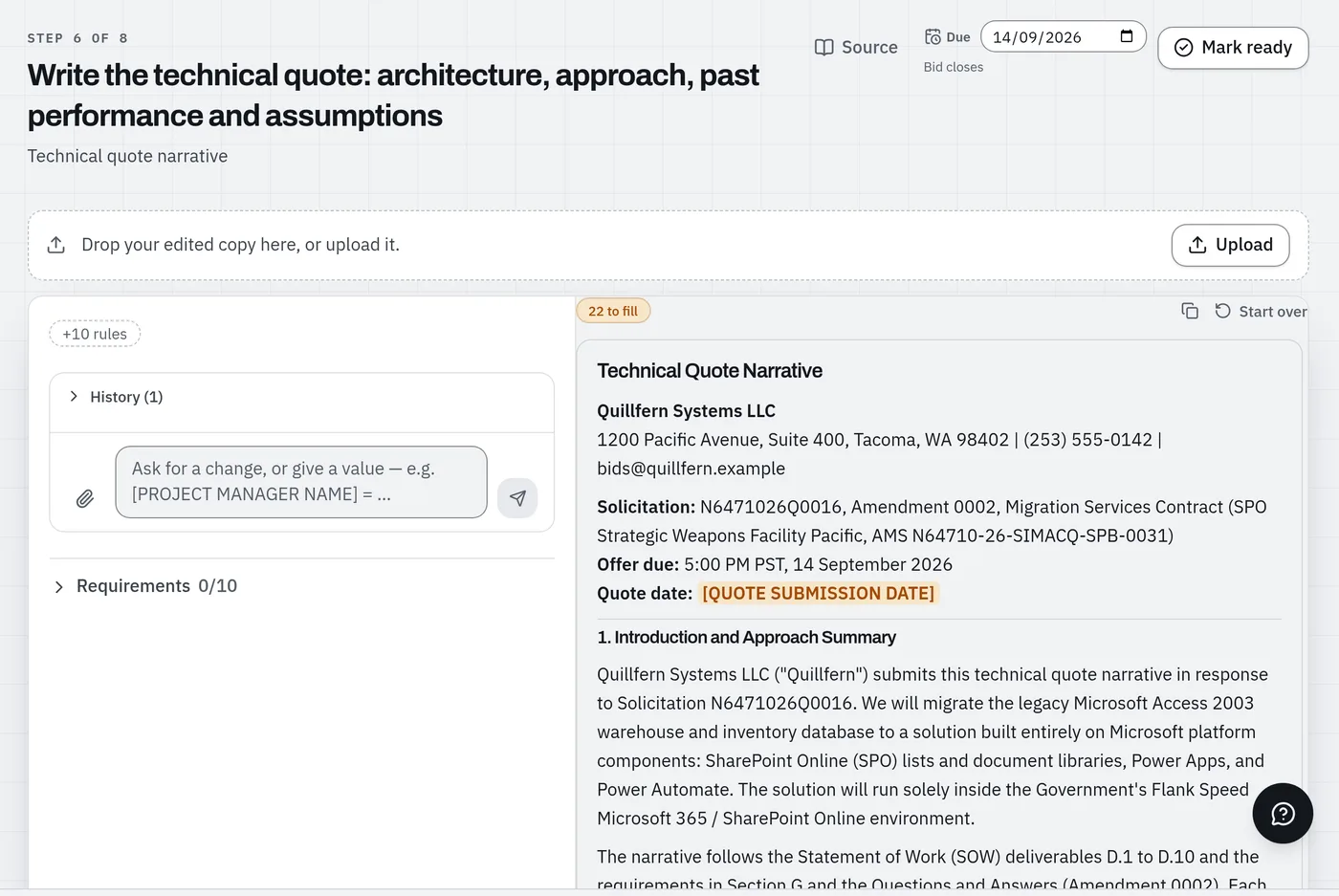
Anything only your firm can decide stays a blank in capitals, like [QUOTE SUBMISSION DATE]. This one
had 22. You ask for changes in plain words, and download the document as a Word file.
When a tender asks for CVs or past project sheets, the same happens one item at a time: one CV per person and one sheet per project, each with its own Word file, and a single download for all of them. When the buyer gives its own CV or project form, Offra lists each field to copy instead, as it does for any buyer form. The Navy RFQ asked for neither, so they are not in these screenshots.
Offra never writes your price, in a document or in a form. Every amount it writes is checked against what it read and what you typed, and an amount found nowhere becomes a blank. Why it stops at the price.
Your version, checked
When you have edited a document, drop your copy on the band at the top of its page. It becomes v1, then v2 when you drop the next one, and each version is checked against the tender on the spot.
We dropped the technical quote back in as Word, unedited. In about a minute and a half the check ticked 9 of the document's 10 requirements and raised 9 corrections, starting with the price:
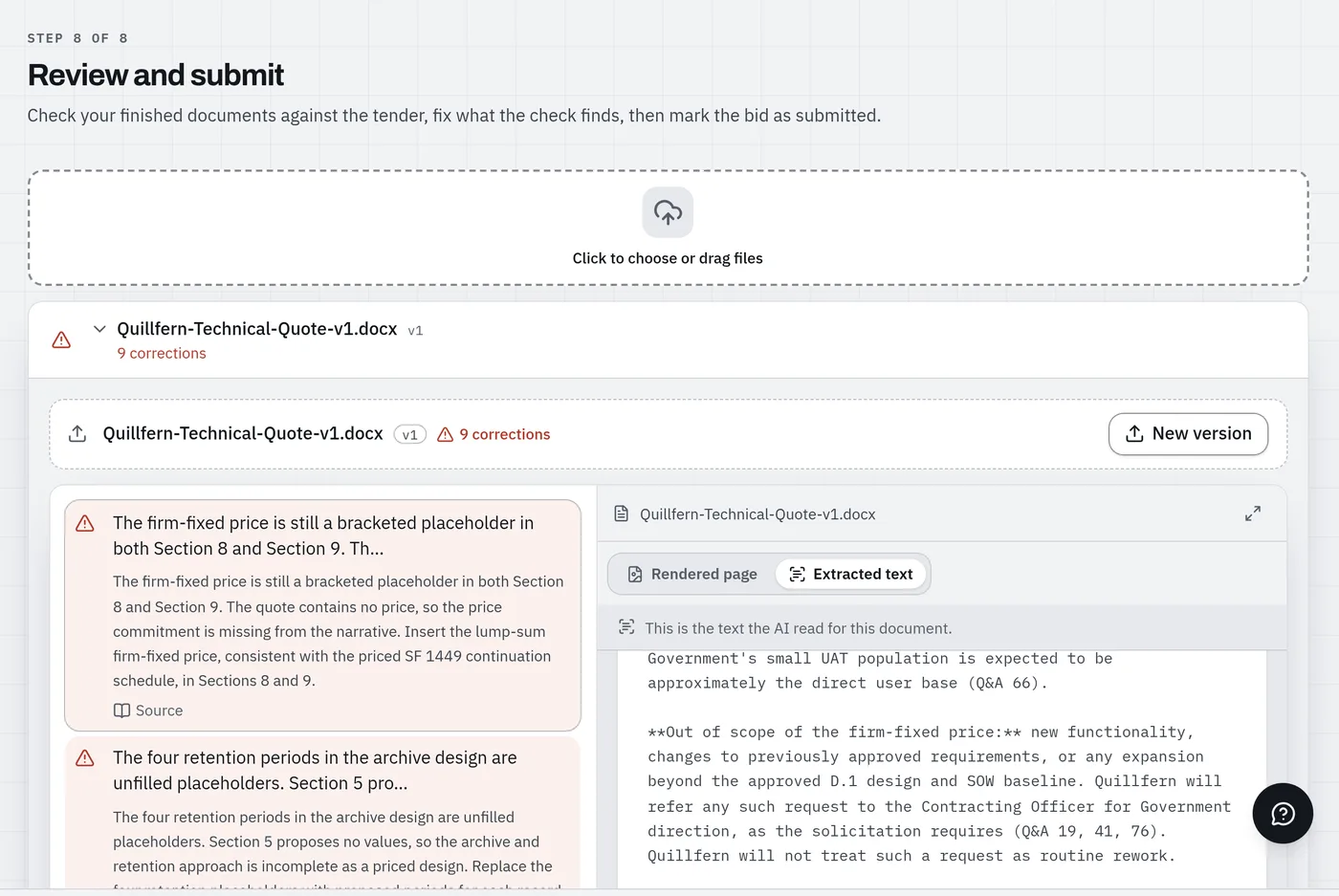
That first correction is the rule above working from the other side: Offra left the price for you to write, and the check will not let it go out blank.
Review & submit gathers every file you uploaded, one row per document with its versions. A row opens on its corrections beside the newest version. When everything is fixed, send the bid the way the tender asks. Offra never submits for you, and Mark as submitted records that you did.
What went away
- The tabs and the Summary page. The sidebar's steps replace them. Every old link still works and lands where its content went.
- Draft answer on each task. Offra writes whole documents now. Answers it drafted before today are still readable, under their requirement.
- The Tender tab inside a bid. The go/no-go and the market evidence now live on the notice's own Bid report, before you start a bid. A bid opened from a notice links back to it.
- The Questions tab. Questions are a chat now: the help button in the corner opens on the bid you are working on, and answers from the tender's own documents.
Plans, and bids you already have
Every bid you buy, and every bid on Business, gets the steps, the documents written for you and the values to copy into the buyer's forms. Business includes bids every month; the free account and Intelligence buy them one at a time. Prices are on the pricing page.
A bid analysed before today needs one more analysis to fill its new steps, because the steps rely on things the old analysis did not read: each document's heading and what the buyer asks of it. Its document steps show a Re-analyze button. It is free, and it keeps your ticks, owners, due dates and uploaded files. Nothing is deleted.