
This was one of the biggest weeks Offra has shipped, and most of it comes from two ideas.
The first is that reading a tender is only half the job. The other half is running the bid: knowing who holds each piece, when it is due, and what changed since you last looked. Until this week Offra was strong at the first half and thin on the second. Now every task can be assigned and dated, every bid file reminds the people working on it before its deadlines, and a new page shows each person what they hold across every bid.
The second is how we split what is free from what is paid. Each tool now exists twice. On the free account you do it yourself: fill in the bid/no-bid checklist, set a deadline reminder, watch a notice. On a paid plan Offra does the same work for you, automatically, with settings to control it. The free version is complete at what it does, and it shows you exactly what a plan would take off your plate.
Key takeaway: if you have a free account, try the bid/no-bid checklist and Remind me before a deadline on any open notice. Your first bid now runs on the full Business plan for $0. If you work in a team, open My work to see what everyone holds.
Your first bid is free
Until this week, trying Offra on real work meant a 30-day trial of Professional. That plan does not include the go/no-go, the buyer's record or Draft answer, so people who started a trial to see those features did not find them. The trial is gone. In its place:
- Create a free account. No card is needed.
- When you are ready to bid, add a card. Nothing is charged and no subscription starts.
- One tender then runs start to finish with every Business feature: the full reading of the package, the go/no-go and bid report, who has been winning the buyer's work, tasks for your team, drafted answers, the final check, and tracking until the tender closes. You can invite up to 10 colleagues to work on it.
The bid file stays in your account for good, and the AI work on it stops when the tender closes. There is one free bid per workspace and one per card. The radar, AI search and exports stay on the paid plans, because the free bid covers one tender, not the whole account. Look for Try a free bid in the top bar, or start it from New submission or from any open notice.
Why ask for a card at all? Without one, every new email address would be another free bid. The card also makes choosing a plan afterwards a single click.
Decide whether to bid, before you open a document
For a small firm, the first question about a notice is not "how do we win this" but "can we even bid it". The free account now answers most of that before you download anything.
The bid/no-bid checklist
Every open notice now carries a checklist of 18 questions in six groups: Can we bid? Are we eligible? Can we deliver? Can we meet the terms? Can we win? and Our own history. They are the same questions Offra's Business go/no-go weighs. This is the checklist we run on every tender. Fill it in yourself free, or let Business fill it for you.
Here are its first two groups on a real small-business set-aside, for an example firm:
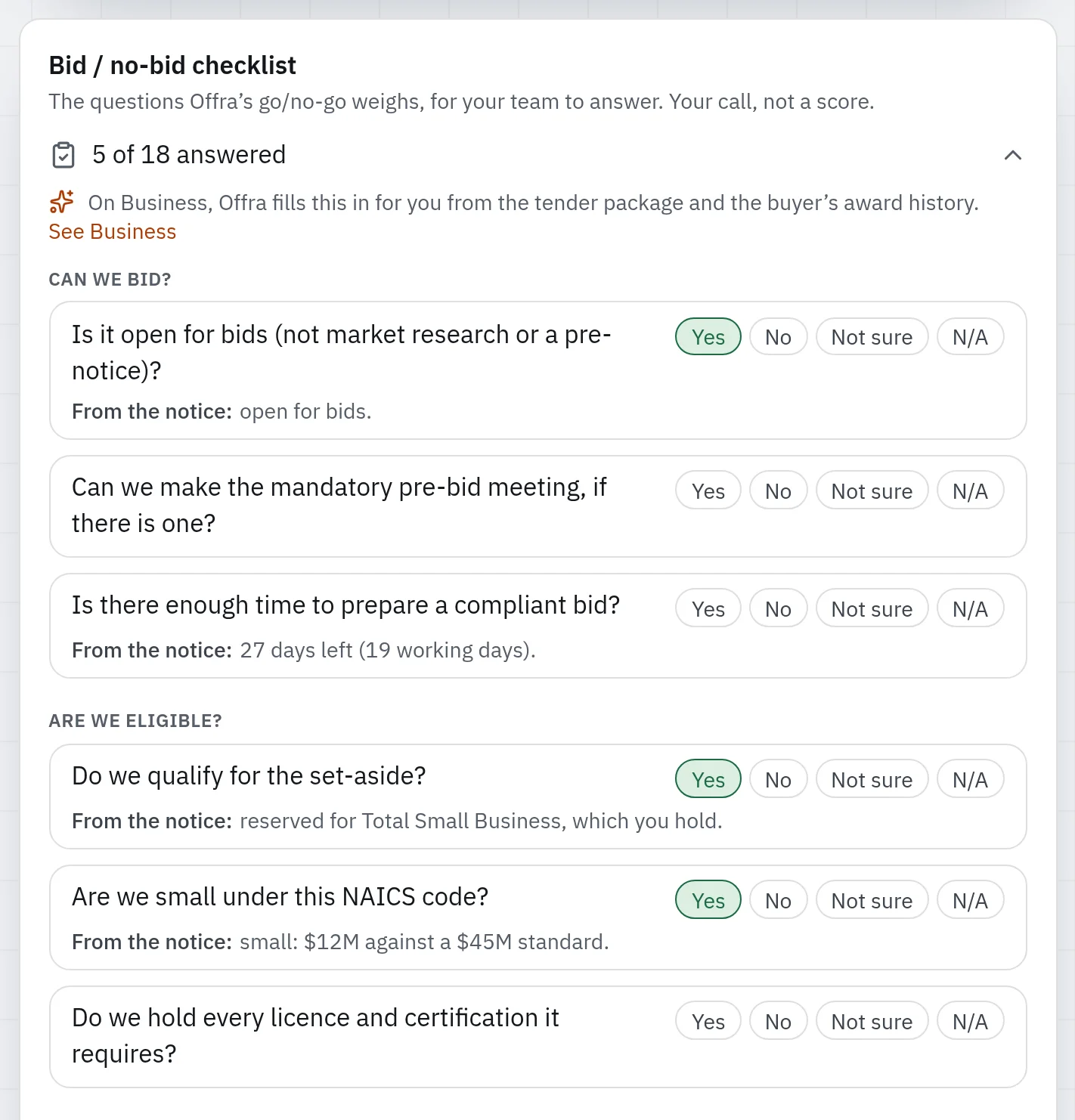
- What the notice settles is filled in already. Whether it is open for bids, whether a mandatory pre-bid meeting has already been held, the set-aside against your certifications, the size check, and your codes and states.
- A mismatch with your profile reads Not sure, never No. Your profile is what you told us, and SBA rules have exceptions, so a mismatch is something to check, not a verdict.
- On Business, and on your free bid, Offra fills in the rest on the bid file's Decision tab, from the package and the award history: the bid bond, disqualifying requirements, a mandatory site visit, who has been winning this buyer's work, your own wins there, and the price posture.
There is no score and no computed bid/pass, on any plan. The decision stays with your team. We'll bid offers to start the bid file, and We'll pass records why. The checklist you fill in on a notice is the one you find inside the bid file you start from it.
Are we small under this code?
sam.gov shows a NAICS size standard and leaves the rest to you. Offra now asks for your average annual receipts and average number of employees during onboarding, and uses them in two places:
- On a small-business set-aside, the quick screen says whether your firm is small under that notice's code, or over the standard.
- On Company profile, Your size under each of your codes lists every NAICS code on your profile as small, over the standard, or missing a figure.
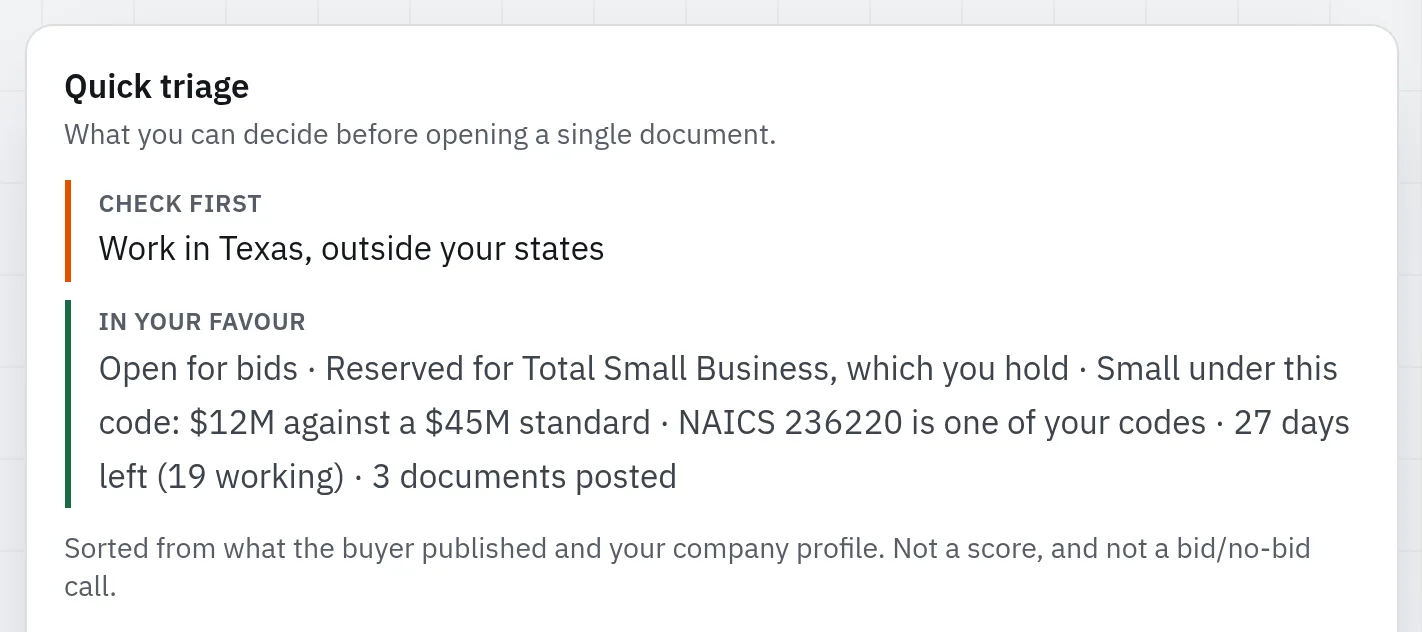
The quick screen sorts a notice's facts into three short lists. Can't bid holds only what the notice itself says, such as a closing date that has passed or a mandatory pre-bid meeting already held. Check first holds what you should confirm, and In your favour holds what works for you. Nothing about your own profile ever lands under Can't bid.
Hide the set-asides you can't bid
Open to my firm, next to Matches my firm on Opportunities, hides notices reserved for a set-aside programme your profile doesn't list. A firm that lists only small business stops seeing 8(a), HUBZone, SDVOSB and WOSB set-asides. It never hides a notice with no set-aside at all, which covers most state and city boards.
More of the notice itself
Every signed-in account, free included, now sees the contracting officer named on the notice, with their email and phone, and the list of attachments. sam.gov shows both to anyone, so hiding them in a free account made no sense. SAM attachments also carry their real file names now, instead of "Attachment 1, 2, 3". You can see how many past awards Offra holds for the buyer, too. Who won them, and for how much, stays on Business.
If you sign up from a notice on the public tender portal, your new account now opens on that notice instead of the home screen.
Find the right notice
Most federal notices have a coded title like "59--COIL,RADIO FREQUENCY", and about 40% of open notices carry no NAICS code at all. That makes them hard to read and hard to filter.
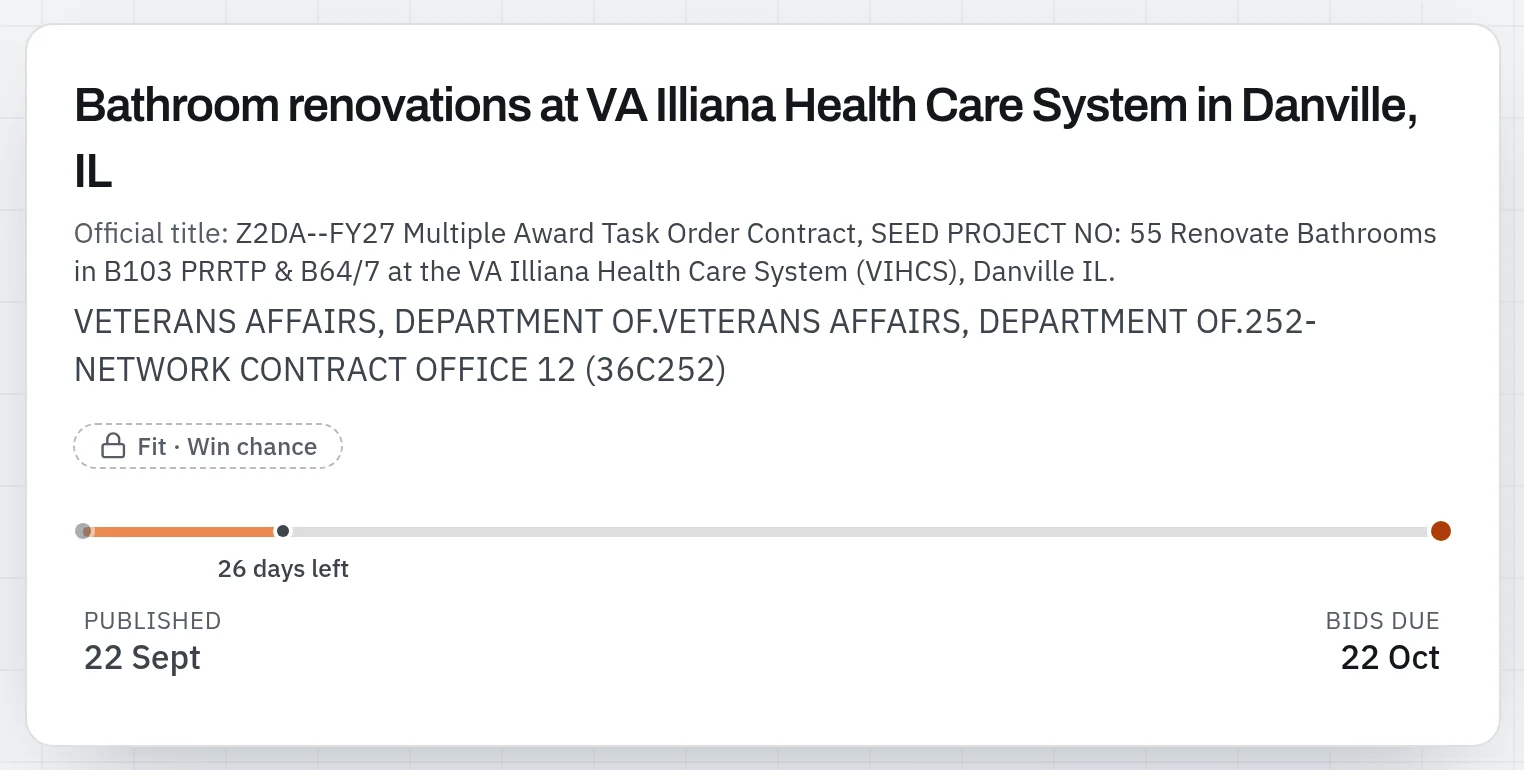
- Plain titles. In the app, every open notice now has a plain-language title, with the official one underneath. An In plain English card leads the Overview: a two- or three-sentence summary, and the requirements the notice states, each backed by the notice's own words.
- New filters. Opportunities can now filter by type of work, by the requirements a notice states (a bond, a clearance, a site visit, a licence, IDIQ/BPA, recurring service, a recompete, a brand name) and by the published value where the notice prints one. Hide spare parts & NSN items takes one click and removes about half of SAM's open notices. On paid plans, AI search understands all of these: "janitorial in Virginia, no bond". Saved searches can't hold these filters yet.
- Opportunities is one list. It used to open on a For you tab that showed only your recommendations. Someone who searched there without noticing the tab saw a handful of rows and concluded the tender wasn't in Offra. Now the page lists every open tender. On a paid plan your recommendations come first, under Best match. For you and Saved are switches that narrow the list, and a narrowed list always says how many tenders it is leaving out.
Don't miss a date, or a file that changed
Deadline reminders
This is the clearest example of the free/paid split.
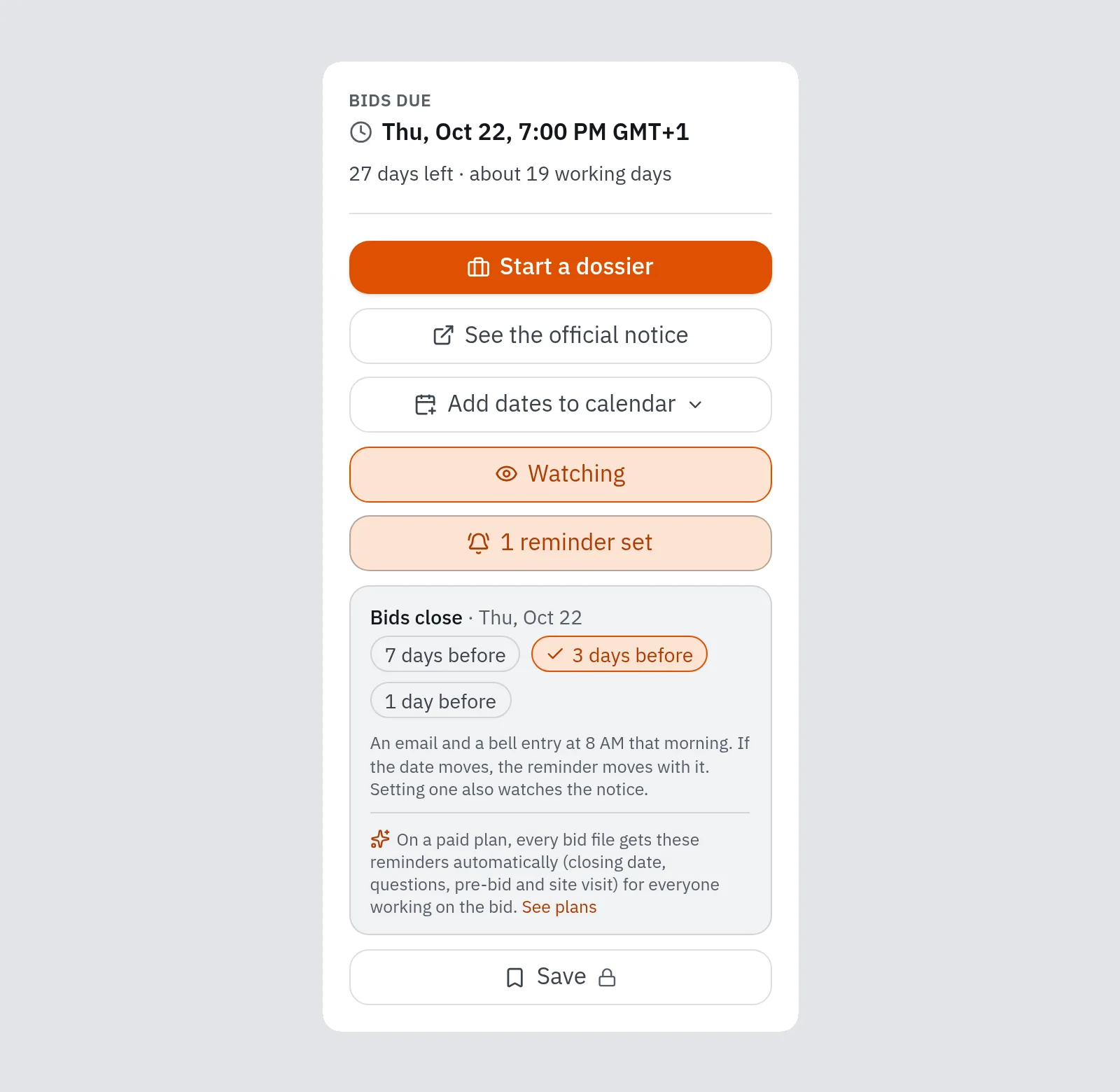
- By hand, on every plan. On an open notice, Remind me before a deadline lets you pick bids close, questions due or the pre-bid meeting, 7, 3 or 1 days before. You get an email and a bell notification at 8 a.m. in your workspace's time zone. If the buyer extends the date, the reminder moves with it. Setting a reminder also watches the notice, so it counts toward your watch allowance.
- Automatic, on paid plans. Every open bid file is reminded of its own dates: the closing, the questions deadline, the pre-bid meeting and the site visit. Nobody has to set anything. The reminders go to the bid's lead and to everyone holding one of its open tasks, and an owner or admin sets the timing once for the workspace in Settings → Workspace.
A file replaced, not added
Bidders told us that sam.gov's follow emails miss one change in particular. A wage determination gets swapped in place, Rev 27 for Rev 28, and the number of attachments doesn't change, so an alert that counts files never fires. Offra had the same blind spot.
Now, for SAM notices you watch or save, Offra compares the files themselves. It tells you when one was replaced or withdrawn, naming what went and what came, as in "Wage determination replaced". It checks against Offra's daily copy of SAM, so it is about as fast as sam.gov's own emails. What it adds is telling you exactly what changed.
Key dates you can use
An amended solicitation used to come out of analysis with 23 key dates: the questions deadline five times, the closing three times, and "180 days after award" seven times. The same tender now reads as 7. The deadline comes first, with the date an addendum moved it from. Then come what is coming up, the contract schedule after award, and a folded history of past and replaced dates. Every date has an Add to calendar menu for Outlook, Google, Apple or an .ics file.
Legal notes follow the same rule. Each clause gets one card, which lists every document that states it, and the cards are grouped by theme.
A tender file that reads top to bottom
The tender file has a new side column for what you act on: the deadline in words and in both time zones, the questions deadline in working days, Start a dossier, Watch and Save, who to ask, and the attachments. The date rail now ends at bids due. When an addendum moved the deadline it shows the old date struck through, and under today it counts down: "7 days left", then "Due today".
Everyone knows what they hold, and when it's due
A bid file is shared by the whole workspace, and that was also the problem: nothing said which parts were whose. Work got divided up in a meeting, or not at all.
- Assign anything. Assign a single task, a whole document to produce, or the bid file's lead. Assigning a document hands over its tasks, and changing the lead moves the work the old lead held by default. Neither takes back a task someone was given by hand.
- Every task has a due date. It is the date a person set, or else the tender's own date the task depends on (a site visit, a questions deadline), or else the bid close. When an addendum moves the deadline, the tasks move with it.
- My work lists your open tasks across every bid, soonest first. Its Team view shows what each person holds, what is overdue and what nobody has picked up. The dashboard gets a Your tasks card.
- Reminders. Each person chooses a daily email, a weekly one, or none, in Settings → Profile.
- People are told. An assignment rings the assignee's bell and sends them an email. Hand someone five tasks within a few minutes and they get one email, not five.
- Start a dossier is now one button on every notice, card and list row. In a team, it asks who leads the bid and takes an optional note. The lead's email tells them the first step: download the package and upload it.
- Who did what. Documents and each of their versions say who uploaded them, finished tasks say who completed them, and the header says who submitted the bid and who declared the result. A new Activity tab on every bid file shows the whole history, even for bids started before the feature existed.
Here is My work with a week of example tasks. Each one names its bid and where its date came from:
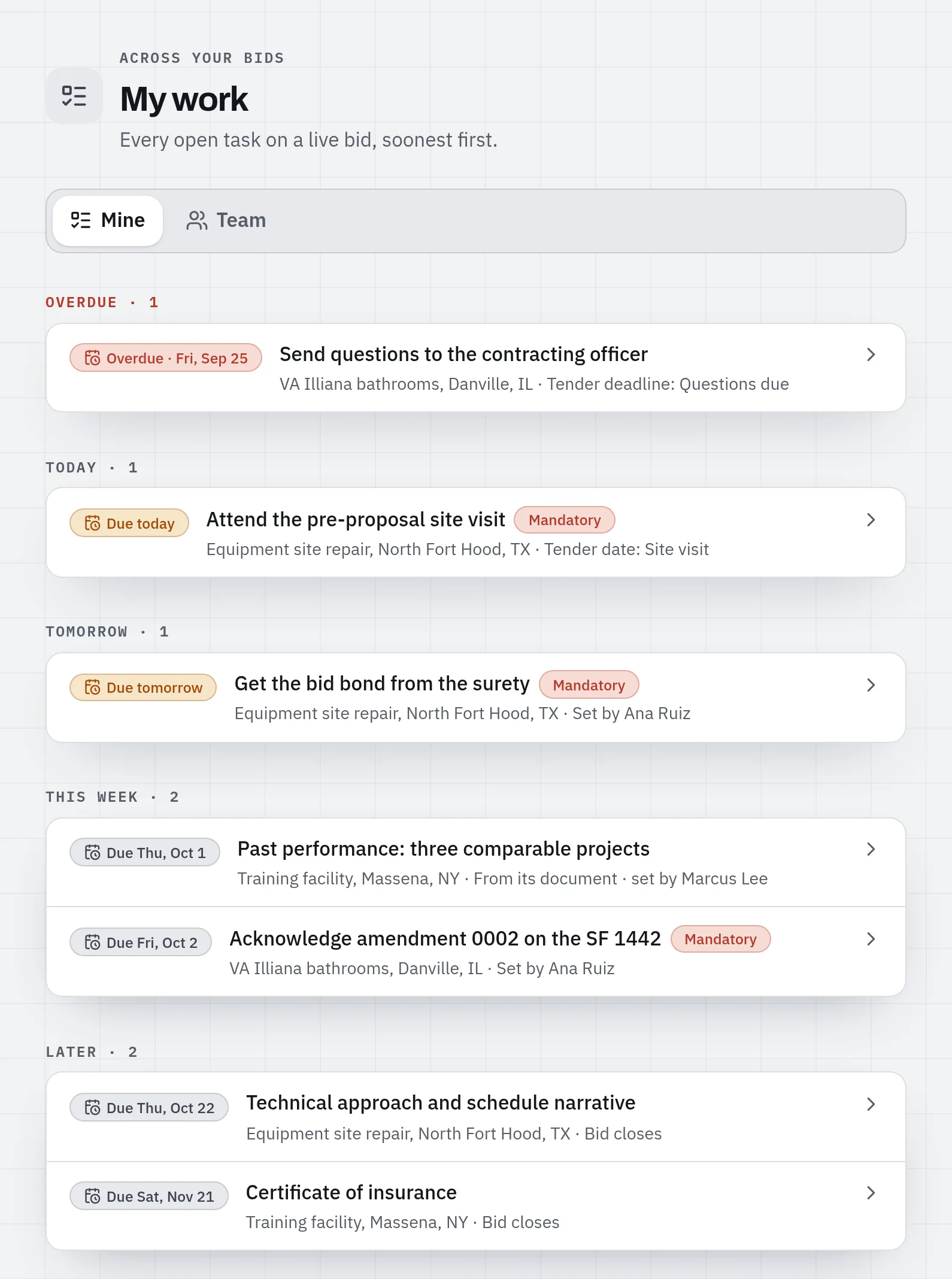
This is about who holds what, and by when. There are no Gantt charts, task dependencies or time tracking.
Draft answer: the hard tasks, drafted
Some tasks are really writing assignments: a methodology, a references write-up, answers to the
buyer's questions. On Business, those tasks now have a Draft answer button. One click, and
about a minute later you have the text to paste, with a chat beside it for revisions. Whatever
only your firm can decide is left as a visible blank, like [PROJECT MANAGER NAME]. It never
writes your price: any amount it cannot trace to what it read or what you typed is replaced with
[AMOUNT TO CONFIRM].
The full explanation, including why the price rule is enforced by a check rather than an instruction, is in why Offra drafts your bid answers but never your price.
Inside the bid file
- One tab for the opportunity. The Intelligence tab is now Opportunity, with four parts: Decision (the verdict and the checklist), Notice (the public notice's calendar, scope, contacts and changes), Buyer and Market. When a bid file is linked to a public notice, what the tender file knows is now inside the bid file itself.
- Similar purchases (Business) leads the Buyer tab. It shows this buyer's past awards for the same type of work, the months it usually awards that work, and what each recent award bought. It also lists contracts ending within a year, by the end date the buyer published. That is a date on record, not a prediction of a recompete. Comparable work now also covers the 40% of notices that have no NAICS code.
- Link to any notice. When the automatic match misses, you can search for the public notice and link it yourself. Automatic linking now starts as soon as a bid file is created, not when someone first opens it.
- A verdict that holds still. Win Intelligence no longer recomputes each time you open the tab. It says when it was generated and has a Regenerate button.
A knowledge base with two ways in
The knowledge base used to make you learn its structure before you could add anything. Now there are two ways in. With Upload files, you drop a batch and Offra proposes where each file goes before anything is saved. With Add manually, you type a piece of information or a rule. Company rules, such as "only the president signs", have their own tab, and a bid that breaks one is flagged in review.
Smaller things
- Continue with Google works on sign-up and sign-in.
- Onboarding asks Is this your company? and shows likely matches from public award records. It no longer asks for an EIN, a UEI and registration numbers that most people don't have to hand. Confirming the match links your firm's past public wins.
- The help assistant keeps separate conversations you can return to under Previous conversations. You can rate each answer, and anything that needs a person goes straight to our support team.
- When a busy month runs past your plan's allowance, Professional and Business can buy extra submissions one at a time, with no plan change. The details are on the pricing page.
- A tab left open during an update no longer crashes. It reloads once.
What we took out, and why
Some of this week's work was removal:
- "Worth a look" on the radar. The Opportunity Radar now reports only Strong and Good matches. You can already browse and filter every open tender, so a middling suggestion only added noise. A week with no match is a normal answer, and the page says so.
- Pursue. Marking a tender as pursued didn't lead anywhere. It is now part of Start a dossier, which asks who leads the bid.
- The trial. The free first bid above replaces it.
If you don't have an account yet, browse the open tenders first, with no sign-up. Then create the free account from any notice you want to keep. The plans are compared on the pricing page.